How to Make Your Steam Inventory Public (and Share It)
To make your Steam inventory public, open your Steam profile privacy settings and set the Inventory dropdown to Public. It is a separate setting from your overall profile visibility. Anyone with your profile link can then browse what you own, with one exception in CS2: items you recently traded for or bought stay hidden from other viewers until they unlock.
How do you make your Steam inventory public?
The setting lives on your Steam profile privacy page. Click your username in the top-right corner and choose Profile, click Edit Profile, then open Privacy Settings. Find the row labelled Inventory and set it to Public. Steam saves the change automatically. You can do this from the desktop client, a browser, or the mobile app; the option is the same in all three.
The detail that trips most people up: Inventory is its own dropdown, separate from your overall profile visibility. Changing the profile-wide setting does not change it, so set the Inventory row specifically rather than assuming it is covered.
Check whether your inventory is public
Paste your Steam profile link, ID or custom name and Steam itself answers: either it serves your CS2 inventory to a stranger, or it does not. Nothing to install.
What each privacy level lets other people see
Each dropdown offers the same three levels. Public lets anyone with the link browse the CS2 items you own, which is what lets friends and potential trade partners look up what you have before starting a deal. Friends Only limits that view to your Steam friends list. Private hides the inventory from everyone but you.
Letting people view your inventory never lets them take anything from it. Viewing and trading are separate actions, and a trade always needs your own confirmation. A public inventory cannot put your items at risk on its own; judging who you deal with is where the real risk lives.
Why are your recently traded skins still hidden?
There is an important limit to the Public setting. A CS2 item you recently received in a trade does not show up to anyone else looking at your inventory, even when it is fully public. This is a Valve security behaviour, not a privacy toggle you can switch off, and it lifts when the item unlocks about a week later. The trade lock explained covers the timing.
So if you just traded for a new knife or a rare float and want to show it off, a plain Steam profile link will not display it to others yet.
Steam profile link or showcase link: which do you share?
Sharing your raw Steam profile URL works fine for a quick look at what you currently own, and it is the right choice if you only need basic visibility. It has two trade-offs: recently traded items stay hidden, and viewers have to open each skin to read its float, seed or stickers.
A VSkin showcase link is the alternative when you want a complete, detailed view on one page. Each skin shows its float and pattern seed, stickers and charm at a glance, and most weapons, knives and gloves open in an interactive 3D render. Syncing your own with the VSkin extension is also what makes your trade-locked skins visible to other people, which showing trade-locked skins walks through. The two are not exclusive: a public Steam inventory answers "is this person real", a showcase link answers "what exactly do they have".
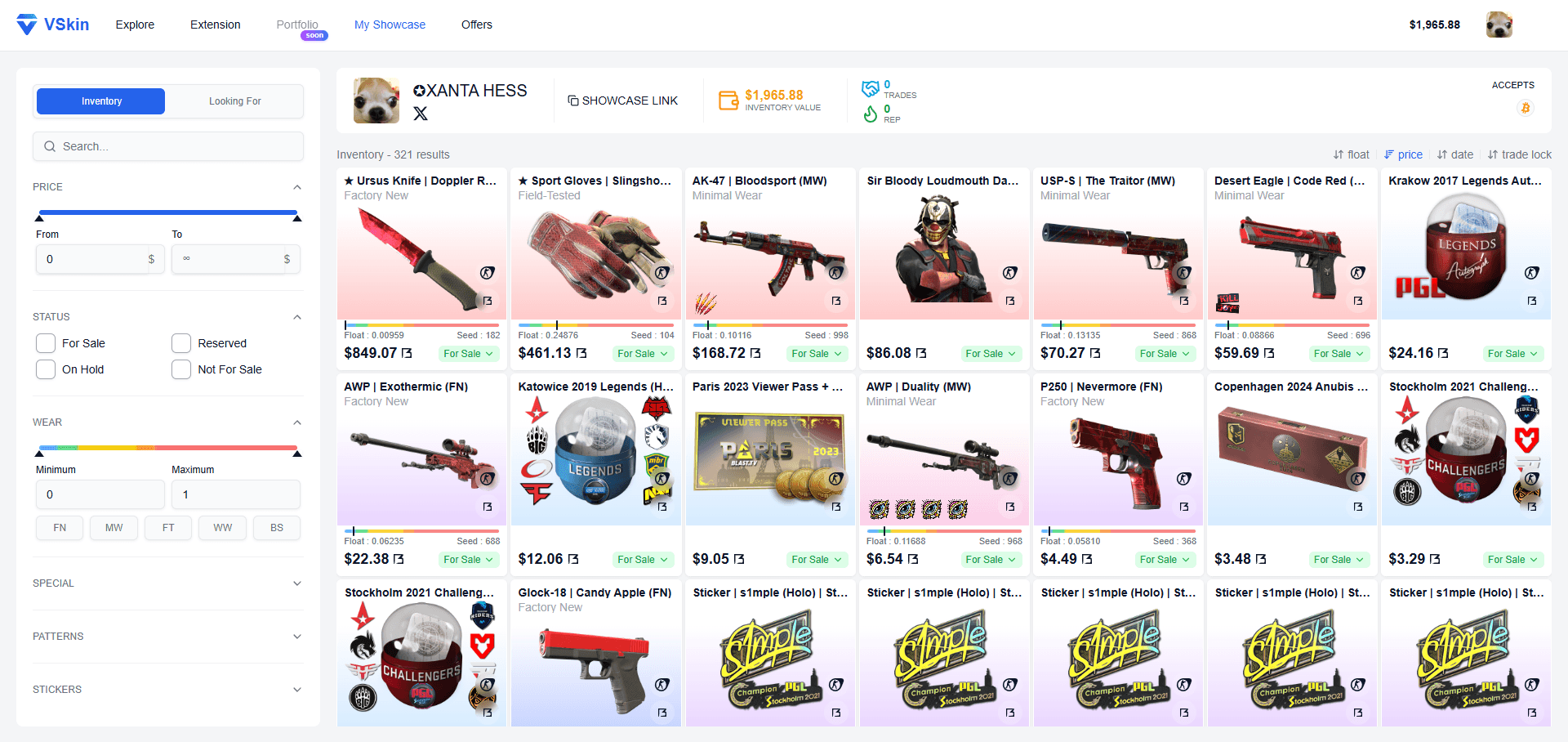
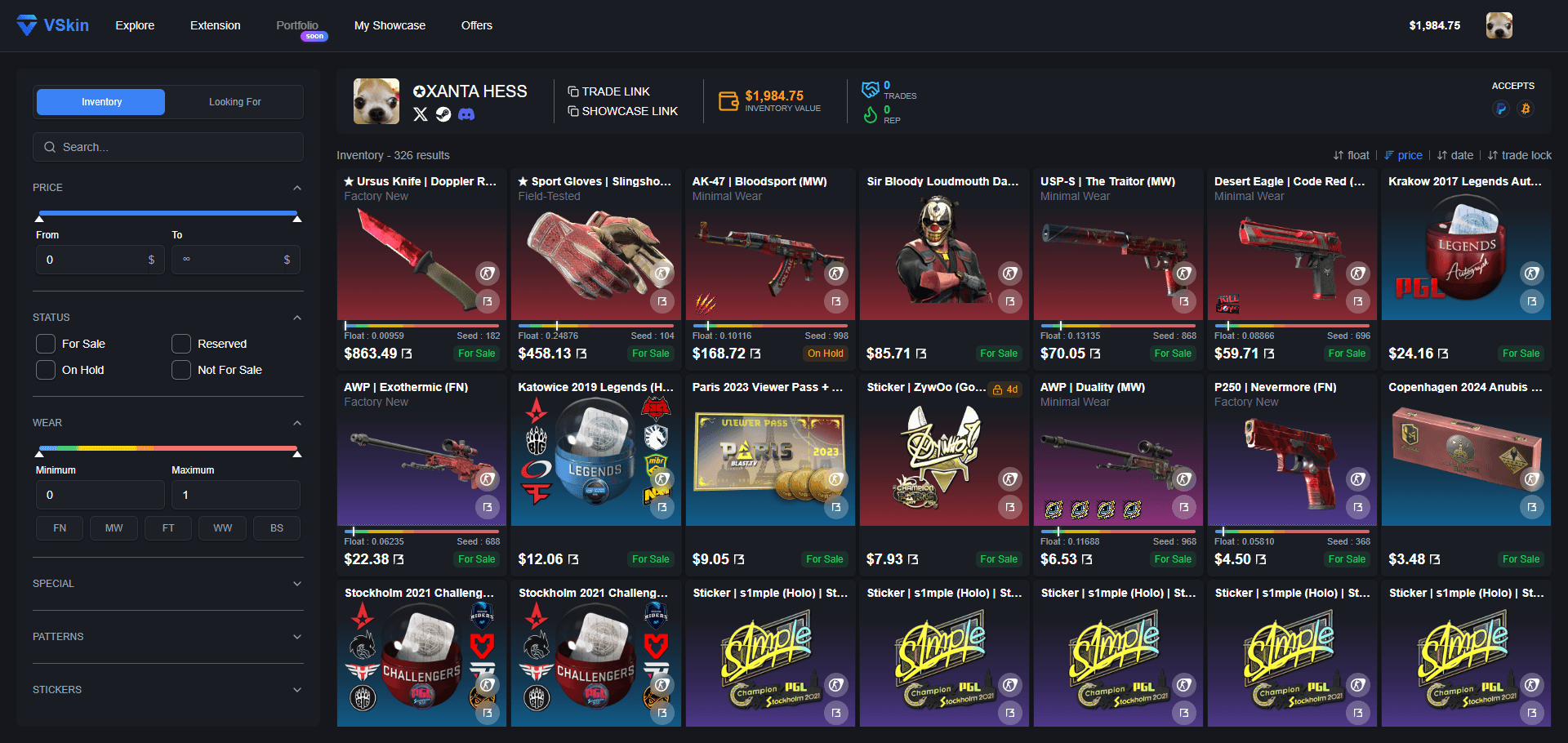
How to make your Steam inventory public
- 1
Open your Steam profile
Sign in to Steam, click your username in the top-right corner, and open your profile. You can do this in the Steam desktop client, a web browser at steamcommunity.com, or the Steam mobile app.
- 2
Go to Edit Profile, then Privacy Settings
Click Edit Profile, then open the Privacy Settings section (labelled "My Privacy Settings" on the web). This page controls who can see your profile, game details, and inventory.
- 3
Find the Inventory dropdown
Locate the row labelled "Inventory". This is its own setting, separate from your overall profile visibility, so changing the profile-wide option will not change it.
- 4
Set the Inventory dropdown to Public
Choose Public so anyone with the link can browse your items. To restrict it instead, pick Friends Only or Private. Steam saves the change automatically.
- 5
Confirm what other people see
Open your inventory link in a private browser window to see exactly what a stranger sees. Remember that skins you traded for in the last week will be missing from that view.
Frequently asked questions
How do I make my Steam inventory public?
Open your Steam profile, click Edit Profile, then Privacy Settings. Find the Inventory dropdown, which is a separate setting from your overall profile visibility, and set it to Public. Steam saves the change automatically. To check the result, open your inventory link in a private browser window so you see exactly what other viewers see.
Does my Steam profile have to be public for my inventory to be public?
No. Inventory visibility and profile visibility are independent settings, each with its own dropdown offering Public, Friends Only, and Private. You can set your inventory to Public on its own. Changing the overall profile setting does not change the inventory setting, so adjust the Inventory row specifically.
Why can't others see all my CS2 skins even though my inventory is public?
Items you received in a trade are trade-protected for about a week, and Steam hides them from everyone except you for that window, even with a public inventory. You can still see and use them yourself, marked with a yellow shield. They appear to other viewers once the protection ends.
How do I share my CS2 inventory with a link?
Set your inventory to Public, then copy your Steam profile URL and send it. Anyone can open it and browse what you own, minus anything you traded for in the last week. For a complete view with each skin's float, pattern seed and stickers laid out, publish a VSkin showcase and share that link instead.
Is sharing my public Steam inventory safe?
Yes. Setting your inventory to Public only lets others view the skins you own; it does not give anyone the ability to take or trade your items, which always requires your own confirmation. Stay cautious with trade offers from unknown users, but simply letting people view your inventory cannot put your items at risk.